  |
|
The fields, links, and buttons available on the Edit Course 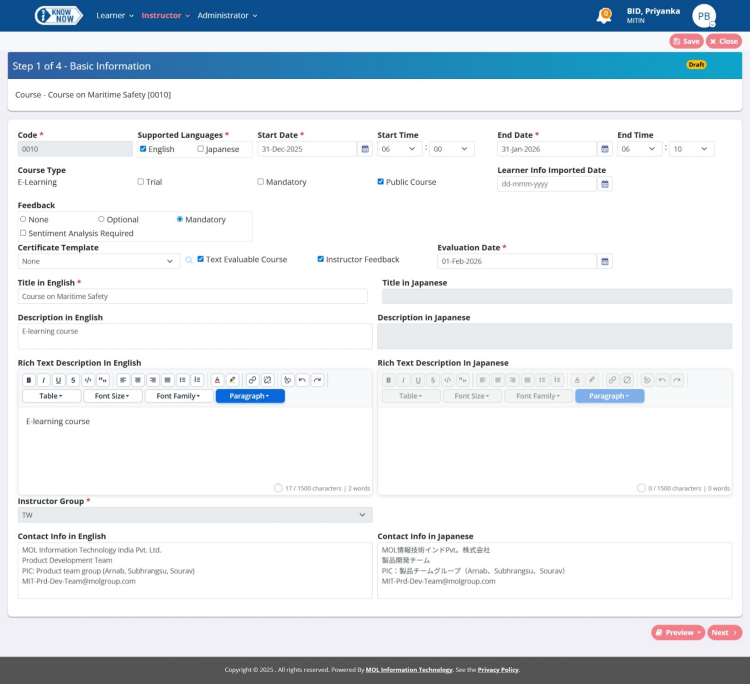 screen are described below.
|
Field |
Description |
|
This screen displays the course status as Draft. |
|
|
Code |
Displays the code associated with the course you want to modify. |
|
Supported Languages |
Click the check box(es) to indicate the language(s) supported by the course. The available check boxes are:
This is a Mandatory Field. |
|
Start Date |
Click the calendar icon This is a Mandatory Field. |
|
End Date |
Click the calendar icon This is a Mandatory Field. |
|
Course Type |
Click to select the type of course from the list. The available options are:
|
|
Certificate |
Click to select the Available check box to indicate the course will have a certificate. |
|
Trial |
Click to select the Trial check box to indicate the course as a trial. |
|
Mandatory |
Click to select the Mandatory check box to indicate the course as mandatory. |
|
Public Course |
Click to select the Public Course check box to indicate the course as a public course. |
|
Feedback |
Click to select the relevant option:
This field is available only when modifying non-certificate courses. |
|
Title in English |
Type the title associated with the course you want to add if you select supported language as English. |
|
Description in English |
Type the description associated with the course if you select supported language as English. |
|
Rich Text Description in English |
Type the description associated with the course if you select supported language as English, using the Rich Text Editor. If you enter this description, only this description is displayed on the Course Detail screen for the Learner. If this field is left blank, then description entered in the Description in English field, is displayed. The maximum number of characters that can be entered is 1000. The character count includes HTML Tags, line feed, carriage return, space etc. |
|
Title in Japanese |
Type the title associated with the course you want to add if you select supported language as Japanese. |
|
Description in Japanese |
Type the description associated with the course. |
|
Rich Text Description in Japanese |
Type the description associated with the course if you select supported language as Japanese, using the Rich Text Editor. If you enter this description, only this description is displayed on the Course Detail screen for the Learner. If this field is left blank, then description entered in the Description in Japanese field, is displayed. The maximum number of characters that can be entered is 1000. The character count includes HTML Tags, line feed, carriage return, space etc. |
|
Instructor Group |
Displays the instructor group you have associated with the course. |
|
Assigned To (Company > Department) |
Click Assign To to modify the company and departments the course needs to be published to.
Notes:
|
|
Contents pane |
Click Click |
|
Tests pane |
Click Click |
|
Buttons |
|
|
Assign To |
Click to assign the company and departments for course publication. The Assign To button is enabled after you click Save to save the general details of the course. |
|
+ New Content |
Button to add new content to the course. |
|
+ New Test |
Button to add a new test to the course. |
|
Save |
Button to save the course information. |
|
Close |
Button to navigate to the View & Search Courses screen. |
 to select the date on or after which the course can be started.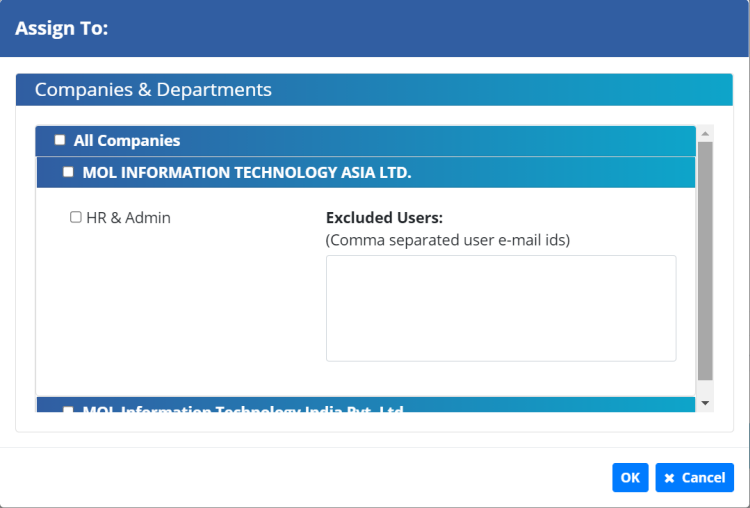
 under
under  under
under