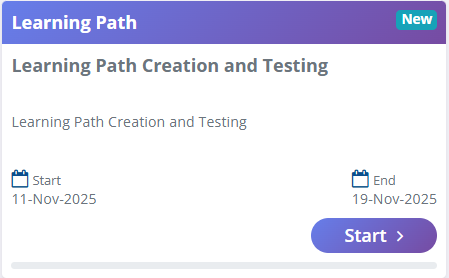
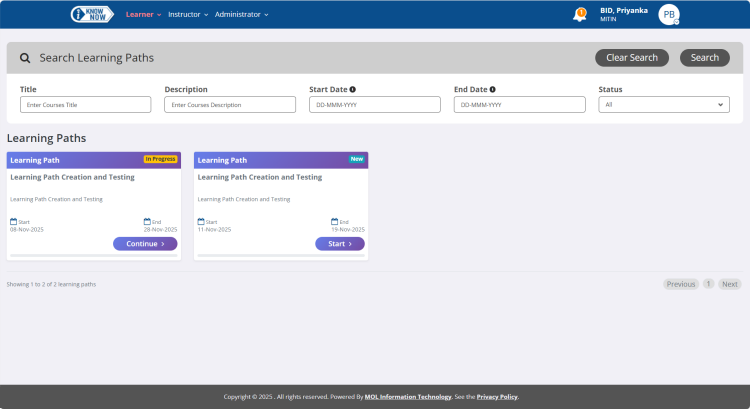
 are described below.
The fields, links, and buttons available on the Learning Paths screen are described below.
|
Field |
Description |
|
Search Learning Paths Pane The Search pane appears collapsed, by default. You can click to expand and collapse the pane. |
|
|
Title |
Type the title associated with the learning path you want to search for. |
|
Description |
Type the description associated with the learning path you want to search for. |
|
Start Date |
Click or type the start date (local date) of the learning path in DD-MM-YYYY format. |
|
End Date |
Click or type the end date (local date) of the learning path in DD-MM-YYYY format. |
|
Status |
In the drop-down list, click to select the status associated with the learning path you want to search for. The available options are:
|
|
Buttons |
|
|
Clear Search |
Button to clear the search criteria entered. |
|
Search |
Button search for a course based on the search criteria. |
|
Learning Paths Pane Contains cards with details of all learning paths assigned to you. |
|
|
Learning Path Card |
|